
OpenGame guide
Scam With Your Friends Multiplayer Guide: Setup & Voice
Set up Scam With Your Friends multiplayer for 1–8 players. Check invites, lobby versions and voice settings using official updates and game screenshots.

Official game artwork. © Jatater Worldwide LLC. Developer website and press materials.
Scam With Your Friends multiplayer supports 1–8 players. You can play solo, host a session with friends, or use public lobbies. Before starting a shift together, get everyone onto the same game version and check that caller input and voices work on each PC.
This guide was checked on October 18, 2026, using the official Steam listing and developer updates, including Hotfix 2 and Update 0.1.73. The images are official promotional screenshots. The setup sequence below combines those documented features with a practical order for checking them.
See the game in motion: Watch the official gameplay trailer, published by developer JakeHub and linked from the game's official website.
How many players can join?
The developer's Hotfix 2 update confirms a lobby range of 1–8 players. That is the total lobby size. The official Steam listing also lists single-player, online co-op and public lobbies.
Scam With Your Friends is a Windows PC game in Early Access. Its callers are fictional AI characters, and the team works through increasingly chaotic call-center shifts under a daily quota. Broadband internet is a listed requirement, including for the game's single-player experience. Playing solo does not establish an offline mode.
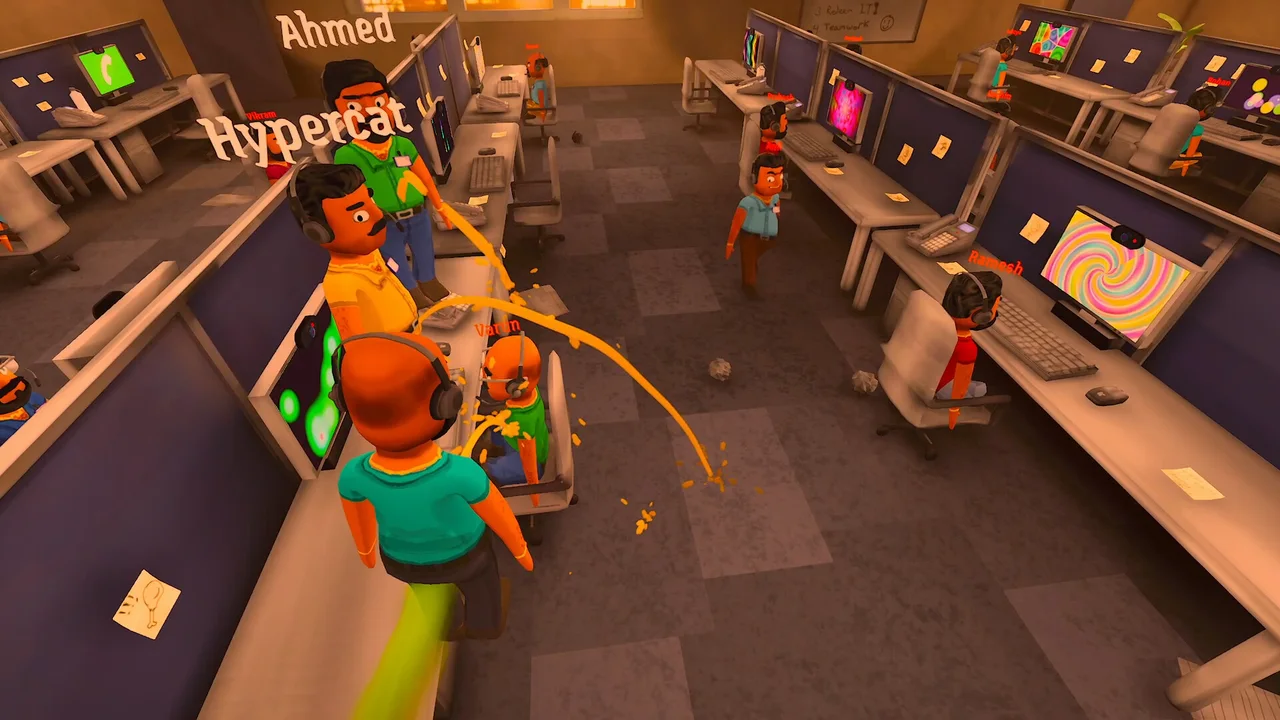
Official multiplayer office screenshot. © Jatater Worldwide LLC. Source: developer screenshot gallery.
Set up a session with friends
Use this order to keep lobby problems separate from voice problems:
- Update before launching. Have everyone finish their Steam update and reopen the game. If someone was already playing when an update arrived, compare versions before organizing the group.
- Choose one host. Create a lobby with room for your group, within the published eight-player limit.
- Share the current invitation. Hotfix 2 says the join-by-code flow accepts Steam invite links as well as codes. Use the host's current invitation and check the displayed message if an entry is rejected.
- Resolve version mismatches first. Update 0.1.73 adds clearer instructions and a way back from the mismatch screen. Follow that guidance and align the group's versions before investigating microphone settings.
- Run a short caller check. After joining, confirm input and caller audio on each machine before committing to a long shift. Typed input remains a documented fallback when speech recognition is unavailable.
These features are described in the official update feed. For a public session, the updates also document player-count and country filters, plus sorting that puts matching game versions first. A lobby with free spaces and a compatible version is a useful starting point.
What if Steam sign-in fails?
Update 0.1.73 documents a backup sign-in address and browser-based Steam sign-in when the normal in-game route fails. Use the fallback offered by the game and keep the exact error message for a support report. The same update says bug reports can be submitted even when game sign-in is unavailable.
Prepare voice input and caller audio
There are three different things to check: your words being recognized, the AI producing a response, and the caller's voice being generated. A working microphone does not prove that all three are ready.
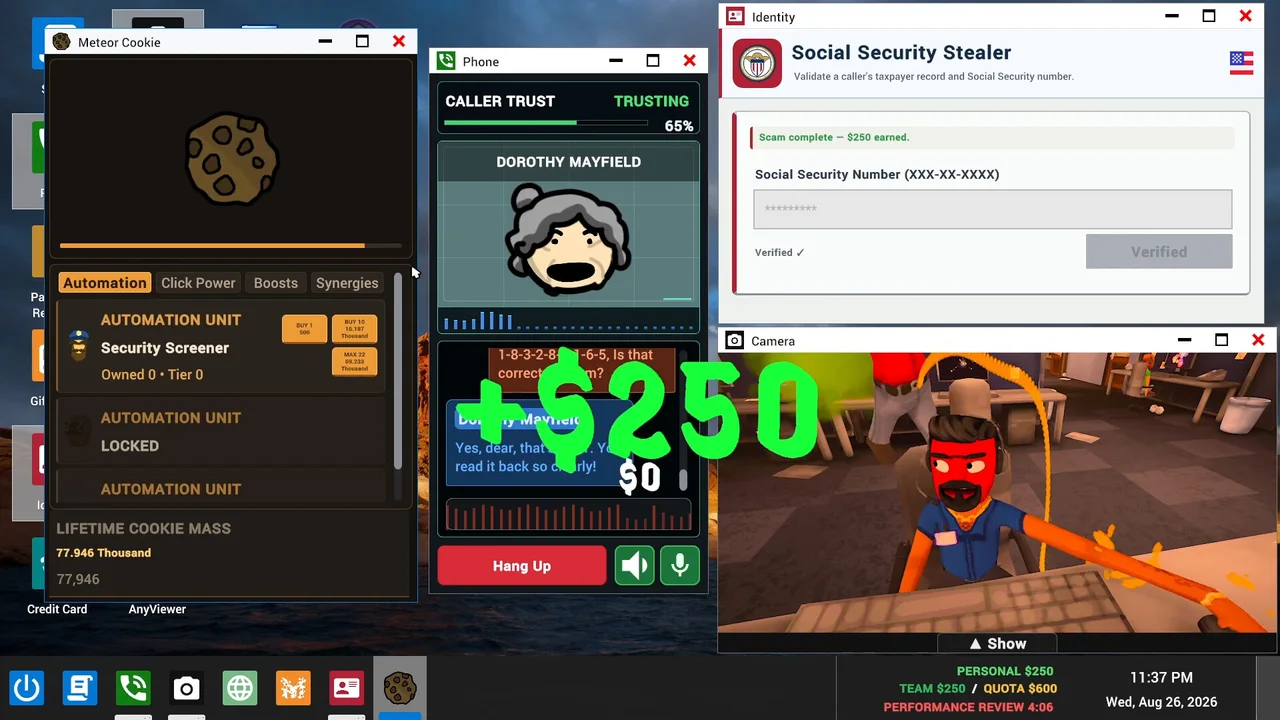
Official desktop screenshot showing the caller interface. © Jatater Worldwide LLC. Source: developer feature images. Promotional UI may differ from the current build.
Your speech is not being recognized
Start by checking that Windows is receiving input from the microphone you intend to use. Then check the game's speech settings. Update 0.1.73 enables automatic microphone leveling by default. It says you can turn that off in General settings to adjust the phone's microphone level manually between 50% and 200%.
The update also adds Moonshine English as a speech-recognition option for compatibility situations and restores Whisper support on some older processors. Follow the compatibility information shown by your build. If recognition is unavailable, use the documented typed-input fallback while identifying the cause.
The caller's voice is missing or slow
Caller speech generation is a separate step from recognizing your microphone. The developer's earlier Hot Fixes post introduced a warning before hosting or joining when higher-quality voices are not ready. Follow the download status and the game's offered wait-or-continue choice.
Update 0.1.73 says Qwen3 TTS requires a compatible GPU and automatically turns off when speech takes more than seven seconds to start. Let the build's compatibility message guide you; completing a voice download alone does not establish hardware support.
The game displays an AI error or usage restriction
Hotfix 2 adds explicit status messages for AI failures and temporary usage restrictions. Read and record that message so you know which part failed. Keep voice-download status, speech-recognition status and the AI error separate when reporting the problem. That gives support something more useful than a general “voice is broken” description.
Make the first shift a setup check
The developer's game overview describes a loop of calls, desktop tools, daily earnings targets and a boss review. Use the first session to learn that loop and confirm the group's setup before focusing on longer runs.
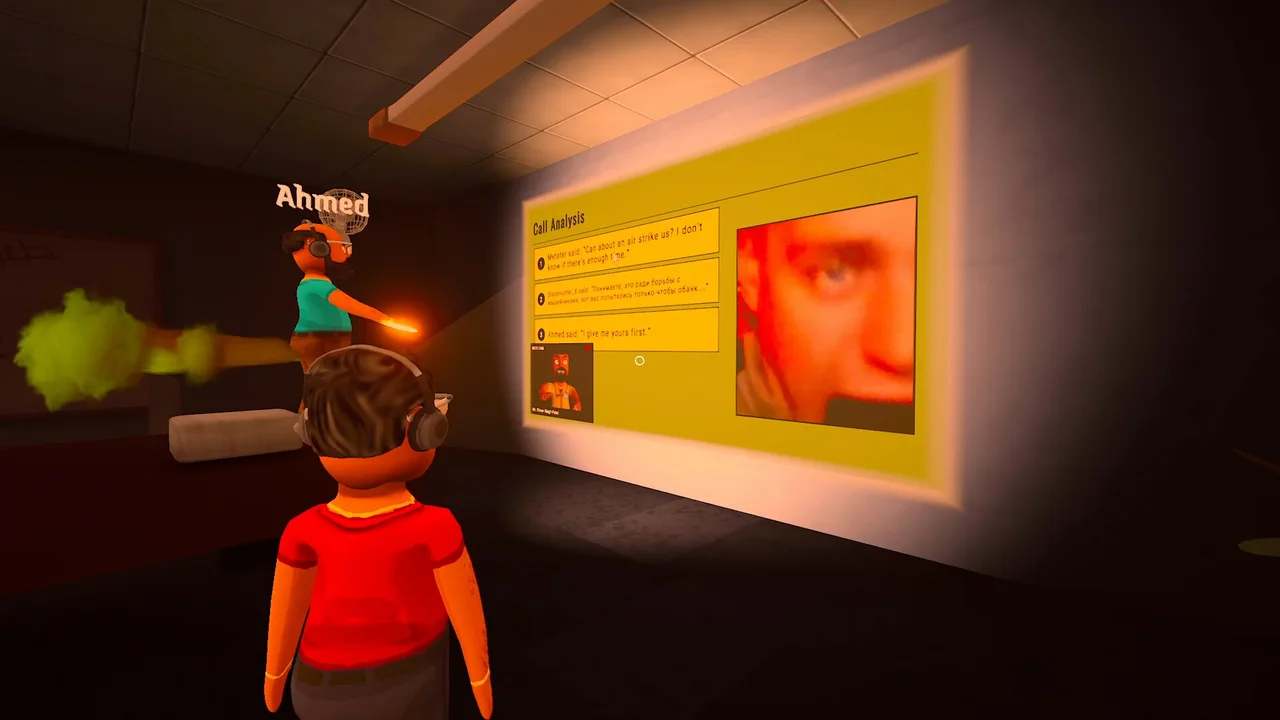
Official team-review scene. © Jatater Worldwide LLC. Source: developer screenshot gallery.
A useful first-session checklist is simple: everybody joins the intended lobby, each person can interact with callers, and the group understands the quota and end-of-day feedback. If something fails, note whether it happened during joining, speech input, caller response or voice playback. Change one relevant setting at a time so the result is interpretable.
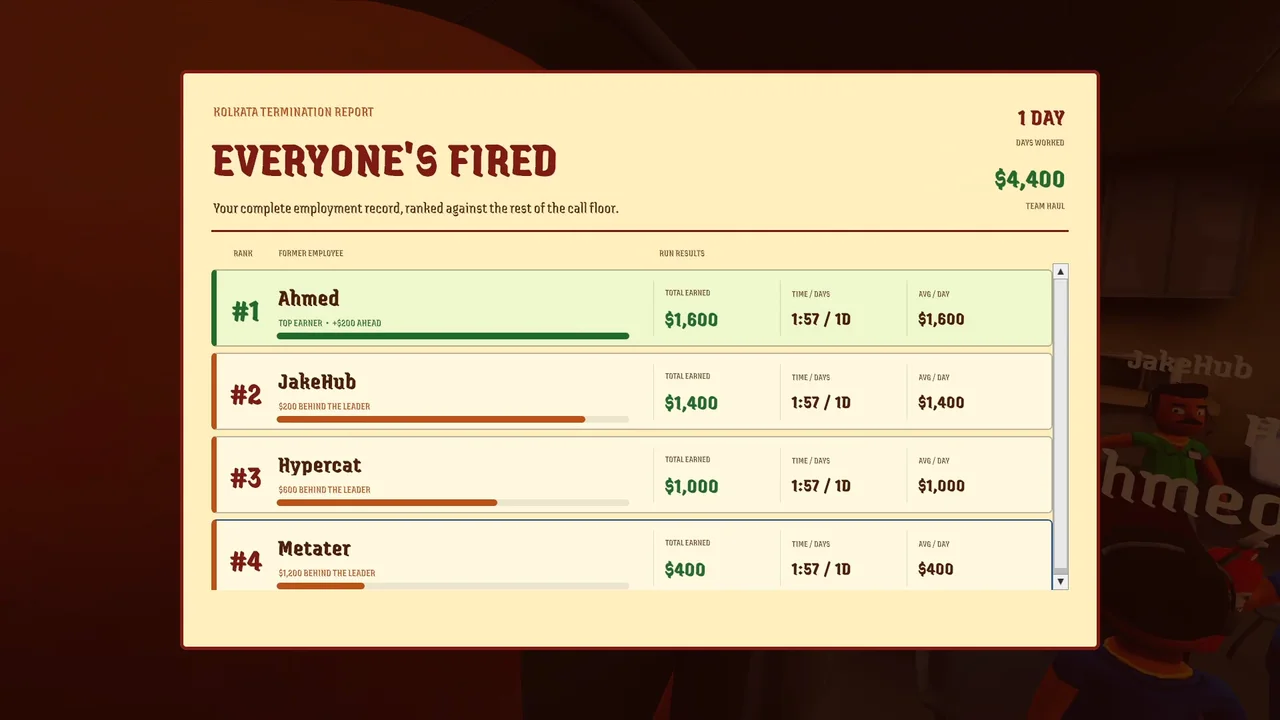
Official end-of-run report. The figures are an in-game example. © Jatater Worldwide LLC. Source: developer feature images.
For a useful bug report, include your game version, Windows version, CPU/GPU, language, relevant voice options, the exact message and the step that triggered it. Distinguish a problem affecting one player from one affecting the whole lobby.
Can you play without a microphone, or on a Mac?
The developer explicitly documents typing to callers when speech recognition is unavailable. That provides a fallback for interacting with callers; the update does not establish every possible teammate voice-chat arrangement.
For platform planning, the Steam requirements list Windows. Update 0.1.73 explicitly labels Mac, Linux, CrossOver, Wine and Proton as unsupported. Its Windows ARM speech features are experimental, and it says Qwen3 TTS remains unavailable there. Use the developer's current support information when choosing a setup.
Explore the AI game idea further
Live AI caller dialogue is one way to use AI in a game. If you are interested in AI generating the game itself, our OpenGame Studio model tests explore that different workflow. In OpenGame Studio, you can prototype an original office challenge with your own characters, a daily quota and clear end-of-round feedback. For something quick between sessions, browse OpenGame's browser games.
Source note
Player modes and platform requirements come from the Steam listing. Lobby, invitation and voice details come from Hotfix 2, Hot Fixes and Update 0.1.73 in the official Steam update feed, checked October 18, 2026. The checking sequence and first-session checklist are our editorial guidance, based on those documented features.
Images are publisher promotional material, © Jatater Worldwide LLC, obtained from the official game website. The developer provides a creator press kit and invites creators to use its assets. Watch the official announcement/gameplay trailer for the game in motion. This article is based on official documentation and promotional material rather than an OpenGame multiplayer playtest.