
Creator notes
How to Make a Browser Game with AI Using OpenGame Skill
Use OpenGame Skill as an AI game generator: build a 2D browser game, preserve artwork through V1–V3 edits, playtest, and export editable HTML and ZIP files.
 OpenGame Team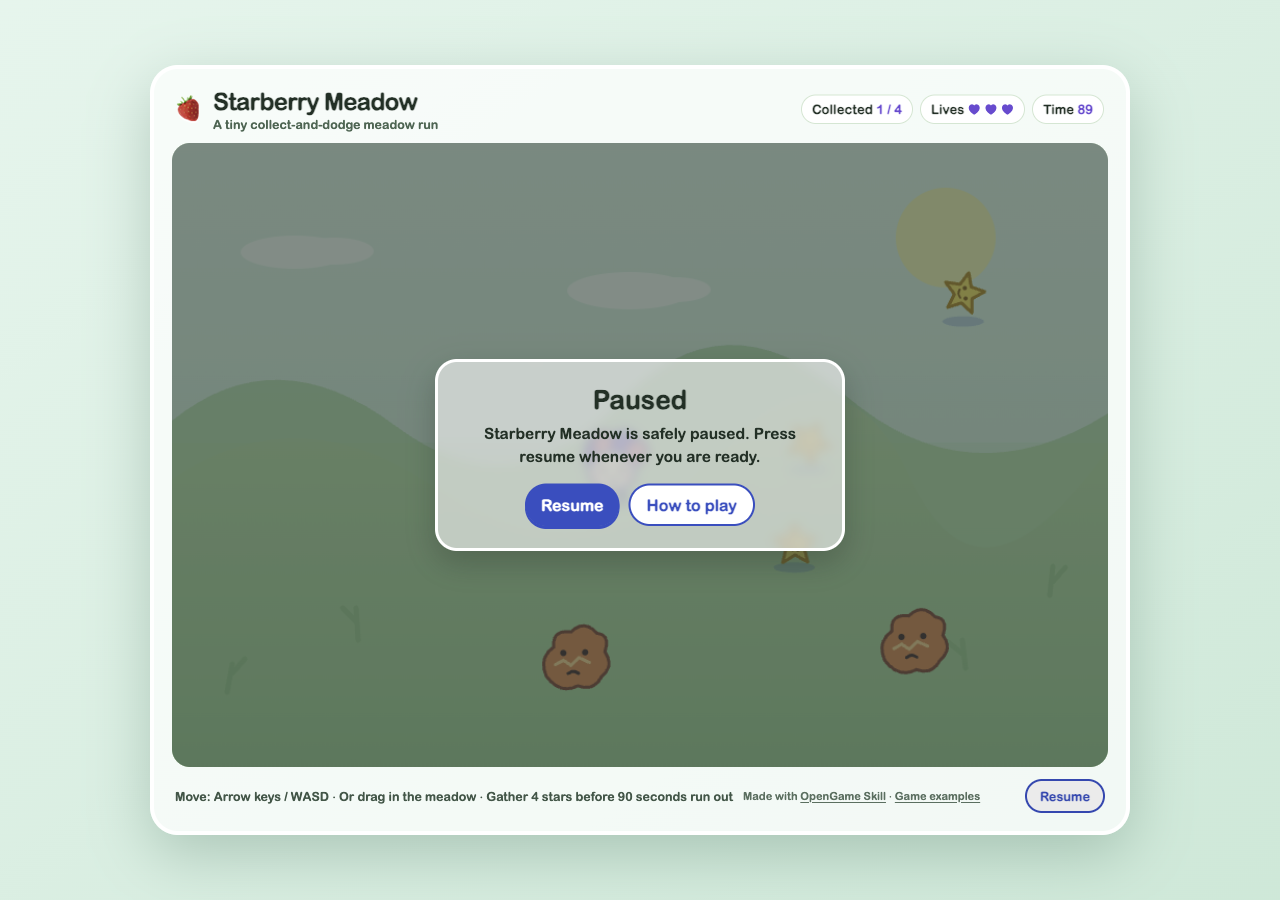
A useful AI game generator should help you keep improving the game you have already made. After the first playable version, you might want slower enemies, a different collectible, or a clearer score display. Those changes should preserve the parts that already work.
This tutorial uses the free, open-source OpenGame AI Game Generator Skill to build a small 2D browser game and revise it twice. You will get a playable HTML file, editable SVG artwork, and separate version downloads. The example is Starberry Meadow, a collect-and-dodge game with keyboard and touch controls.
Prefer to start on the website? Open OpenGame Studio. The local Skill described here is a separate workflow that runs inside a compatible coding assistant.
What the OpenGame Skill provides
The OpenGame Skill source includes instructions, a Canvas game starter, original SVG artwork, a Python project helper, and a playtesting checklist. Your coding assistant uses these resources to create files and make focused changes.
The starter covers movement, collecting items, hazards, lives, a timer, and a win/lose/restart loop. Its artwork includes a meadow background, three player frames, a star, a gem, and a hazard. You can ask the assistant to edit those local assets or adapt the game code.
The Skill does not call an image-generation service. Its initial art comes from the bundled SVG files, which are editable source assets. It also does not call OpenGame servers or consume OpenGame credits. Your assistant's own subscription, model access, and tool limits still apply.
1. Install the Skill in your coding assistant
You need a compatible assistant with access to project files and Python 3. Browser tools are useful for playtesting; you can also open the generated HTML in a browser yourself. A chat interface that can only return text cannot run this workflow or produce verified downloads.
The repository documents this installation command. Run it from a terminal on the computer where you use your coding assistant; it requires Node.js and npm:
npx skills add opengameapp/OpenGame-skills --skill opengame-offline-arcade
Follow the installer's host selection, then open a new assistant session if the Skill does not appear immediately. For Codex, confirm that opengame-offline-arcade is available before starting. OpenAI's customization documentation explains how Skills combine instructions, scripts, and reusable assets.
Alternatively, download the repository's v1.0.0 source archive and install the complete skills/opengame-offline-arcade folder using your host's local Skill workflow. Keep its scripts, assets, and references folders together with SKILL.md.
2. Describe a small playable game
Start with a clear player action, goal, controls, and restart condition. A compact brief gives an AI game maker something concrete to build and gives you a way to judge the result.
Try this English prompt:
Use the OpenGame AI Game Generator Skill (opengame-offline-arcade).
Create a 2D browser game called Starberry Meadow in a new project folder.

The player collects four stars in a meadow while avoiding two hazards.
Use a 60-second round, three lives, and the bundled SVG art.
Support arrow keys or WASD on desktop and dragging on touch screens.
Include a visible score, lives, timer, pause, and restart flow.

Save the first version. Give me the playable HTML and editable ZIP,
and tell me which checks you actually ran.
The helper creates a working project and an initial v001 snapshot. The assistant may need to inspect and adjust the working files before the prototype meets your brief. Ask it to test the core loop and record any further changes as a new snapshot.
Open the delivered index.html in a browser. Check that movement works, stars increase the score, hazards affect lives, and winning or losing gives you a clear way to restart. Getting a file download is only the first check; the game still needs to be played.
3. Make V2 easier without replacing the game
Continue in the same project and conversation. Make the requested changes specific, including what should stay the same:
Revise the existing Starberry Meadow project for V2.
Read its current code and latest saved version first.

Increase the round to 90 seconds, set hazardSpeed to 45,
and change the interface accent color to blue (#3459c7).
Keep the four-star goal, controls, three lives, two hazards,
existing artwork, and all other gameplay unchanged.

Playtest the changes, save a new version, and export V2.
These are configuration changes. The helper updates the embedded settings while preserving the rest of the HTML and JavaScript. The previous snapshot remains available, so you can compare the easier version with the original.
In our recorded V2 browser check, keyboard input increased the score and pause worked. The screenshot shows that paused game with its four-star goal, 90-second round, three lives, and blue controls.
4. Add a focused gameplay change in V3
Next, try a revision that combines an asset choice with a small code change:
Continue editing the same project for V3.
Replace the stars with the bundled gem artwork and require five gems.
Add a best-score display that survives restarting a run but resets
when the browser page is reloaded.

Keep the V2 timer, hazard speed, blue accent, movement, and other art.
Read and edit the existing code, then test, snapshot, and export V3.
Changing from a star to a gem selects a different SVG asset. The best-score display requires a focused change to the game code. The assistant should inspect the previous implementation, make that change, and check that the earlier difficulty settings still apply.
Our V1–V3 test preserved the seven SVG source assets and carried the V2 difficulty changes into V3. In a mobile browser check at 390 × 844, touch input completed the five-gem goal. Restart kept the requested in-memory best score; reloading the page reset it. The published validation record separates those recorded gameplay checks from the final package's local tests.
5. Check and export the version you want
Before sharing a download, ask the assistant to verify and export a specific saved version. The working copy can contain later edits, so naming the version matters.
Your editable project contains:
index.html: the playable game with embedded settings and artwork.game.json: editable game settings.assets/: the original SVG source files.project.jsonandversions/: project history and saved snapshots.README.md: usage information.
An exported ZIP contains the selected version's game, settings, README, artwork, and version manifest. Keep the original project folder too: a version download is not a backup of the entire project history.
Use this short playtesting checklist for every revision:
- Movement works with the intended desktop and mobile controls.
- Score, lives, and timer update correctly.
- The win, loss, pause, and restart flows still work.
- The requested change is visible and unrelated behavior is preserved.
- The exported HTML opens and plays without a server.
The helper's structural verification checks saved files and embedded resources. It does not execute gameplay. If browser testing was unavailable, the assistant should say so and give you the files to test.
When to use the Skill or OpenGame Studio
Use the Skill when you want a local, editable 2D prototype inside your coding assistant. It gives an AI game builder a concrete starting point, reusable art, and a process for preserving revisions.
Use OpenGame Studio when you prefer the website's game creation interface. You can explore the game creation workflow or browse the selected games for ideas. The website has its own account and credit rules; installing the local Skill does not connect an account or upload your project automatically.
This Skill version exports browser-game files and 2D artwork. It does not include 3D generation or Blender export. Start with a small playable loop, keep your working project, and change one meaningful part at a time.